To design a laptop sticker, choose your graphics and shapes, and use a design software. Ensure your design fits within the dimensions of your laptop’s surface.
Creating custom laptop stickers is a fun and creative way to express your personality or brand. Start by selecting the images, text, and colors that reflect your style or message. Using graphic design software like Adobe Illustrator or a free online tool like Canva, you can bring your vision to life while considering the size constraints of your laptop.
A well-designed sticker can serve as a statement piece or even a conversation starter, making it important to design with intention. Remember, the most eye-catching stickers are often those with a clear focus, whether it’s a bold logo, a quirky drawing, or an inspirational quote. As you prepare your design, think about the surface area you have to work with and aim for a balance between creativity and simplicity to ensure your laptop sticker truly stands out.
Creating Your Vision
Crafting the perfect laptop sticker begins with a clear vision. Stickers not only embellish your device but also showcase your personality and interests. Transform your ideas into a tangible design with these creative steps.
Identifying Themes And Inspiration
Explore what ignites your creativity to set the stage for your sticker design. Consider these points:
- Personal interests or hobbies
- Favorite quotes, shows, or characters
- Color schemes that reflect your style
- Current design trends
Start by gathering images, patterns, or artwork that speak to you. Create a mood board with these elements to refine your concept.
Sketching Initial Concepts
Grab a pencil and let your ideas flow onto paper. You don’t need to be a pro artist—just doodle!
- Draw multiple rough sketches to explore different layouts and compositions.
- Experiment with shapes and sizes.
- Combine elements from your mood board.
Choose the sketch you love most and refine it. This sketch will form the base of your final sticker design.

Credit: www.pinterest.com
Choosing Design Software
Choosing the right design software is step one in creating your perfect laptop sticker. Your software determines everything from the ease of design to the quality of the final print. Let’s break down the options.
Vector Vs. Raster Graphics
Understanding the difference between vector and raster graphics is crucial. Vector graphics, made from paths, are scalable and perfect for designs that need resizing. Raster graphics are pixel-based, ideal for rich, complex images but can lose quality when scaled.
Popular Design Tools For Beginners
Popular design tools come in handy for beginners. They offer user-friendly interfaces and essential features to bring your ideas to life. Check out the list of beginner-friendly software:
- Adobe Spark: Offers templates and a simple interface.
- GIMP: A free, open-source raster editor.
- Inkscape: Great for vector art, also free.
- Canva: Comes with pre-made designs to customize.
- Pixlr: Web-based editor that’s easy to access.
Design Elements And Principles
Creating a custom laptop sticker is an art. It blends design savvy with personal flair. To ensure a standout sticker, familiarize yourself with design basics. Balance, color, and typeface work together to convey your unique style. Let’s dive into the design elements and principles that will guide your sticker to perfection.
Color Theory Basics
Color sets the mood for your sticker. It speaks before words do. Follow these simple color theory tips:
- Choose a palette that reflects your personality or brand.
- Understand color meanings. Red excites, while blue calms.
- Use contrast to make elements pop.
Test color combinations with a color wheel. Harmonious colors create pleasing designs.
Incorporating Typography
Typography is the voice of your sticker. Select a font that matches your message. Consider these points:
- Clarity is key. Choose a font easy to read at a glance.
- Size matters. Ensure text stands out against the design.
- Fonts have personalities. A fun font differs from a professional one.
Pairing fonts? Stick to two that complement each other. A pairing keeps the design clean and focused.
Utilizing Space And Balance
Space and balance give structure to your sticker. Keep these ideas in mind:
- Negative space is your friend. It helps important elements to stand out.
- Balance your design. Symmetry or asymmetry both work, but be intentional.
- Avoid clutter. Less often means more impact.
Test layouts before finalizing. Shift elements around to find the best visual flow.
Applying these elements and principles can transform a basic idea into a remarkable laptop sticker.
Preparing Artwork For Printing
Welcome to the essential phase in creating your own custom laptop sticker – Preparing Artwork for Printing. This step turns your creative design into a print-ready masterpiece. Careful attention to detail now will ensure your sticker looks exactly as envisioned on your laptop. Let’s dive into how you can get your artwork print-perfect!
Setting Appropriate Resolutions
High resolution is key for sharp prints. For stickers, aim for 300 dots per inch (DPI). This ensures your design remains crisp and clear when printed, especially for intricate patterns or text. A lower DPI might result in a fuzzy or pixelated final product. Be sure to adjust settings in your graphic software before saving.
Ensuring Color Accuracy
Colors on screen often differ from printed colors. To avoid surprises, use the CMYK color model for your design. RGB is great for screens but CMYK keeps printed stickers true to your original color choices. Consider a printed proof to double-check how your colors will look in physical form.
Selecting The Right File Format
- PDF or AI – Ideal for preserving vector graphics.
- EPS – Another vector option, compatible with different software.
- PSD or TIFF – Best for bitmap images with layers.
Choose a format that locks in quality and is accepted by your printer. Ensure all fonts are embedded, and layers are flattened if not providing a vector file.
Finalizing The Sticker Design
After weaving creativity into your laptop sticker design, it’s time to polish and perfect. Final touches ensure your design stands out and sticks well, literally and figuratively. Let’s guide you through refining your masterpiece.
Critiquing And Iterating
Revisit your work with a critical eye. Aim for a design that captures your message and aesthetic with clarity. Break down each element:
- Color schemes – Check contrast and visibility.
- Typography – Ensure readability and character.
- Graphics – Assess detail and composition.
Iterate your design, making adjustments. Small tweaks can lead to a big impact.
Seeking Feedback From Others
Feedback is crucial for improvement. Share your sticker design with friends, family, or designers. Look for areas to enhance:
- Embrace diverse perspectives for a well-rounded design.
- Ask specific questions about elements in your sticker for targeted advice.
- Take notes on the feedback and apply them judiciously.
With each critique, refine your sticker into a well-crafted, eye-catching accessory.
Printing And Production
Once your laptop sticker design is complete, the excitement builds as it moves into printing and production.
This phase turns your digital art into a tangible form. The right materials, cutting processes, and printing service are crucial.
Each step requires careful consideration to ensure the final product captures your vision.
Choosing Sticker Materials
Sticker materials vary in texture, durability, and finish. Selecting the right type is essential for your design’s longevity and appearance.
- Vinyl: Waterproof and fade-resistant, perfect for outdoor use.
- Polypropylene: Cost-effective and tear-resistant, ideal for limited exposure.
- Paper: Eco-friendly but less durable, best for indoor or short-term use.
Understanding Cutting Processes
Cutting techniques affect the outline and peel-off ease of your stickers.
Choose a method that aligns with your design’s shape and complexity.
| Cutting Type | Description |
|---|---|
| Die-Cut | Custom-shaped cut that follows the design’s contours. |
| Kiss-Cut | Cuts sticker design while leaving backing paper intact. |
| Guillotine Cut | Straight cuts for rectangular or square designs. |
Picking A Printing Service
Not all printing services are alike.
Quality, speed, and customer service differ from one provider to another.
Here is what to look for:
- Equipment Quality: Ensures crisp images and vibrant colors.
- Printing Techniques: Digital for small orders, screen printing for bulk.
- Turnaround Time: Fast production means quicker availability.
- Proofing Options: Check for errors before full production.
- Reviews and Samples: Look for positive feedback and sample packs.
Marketing And Selling Your Stickers
After designing your laptop stickers, it’s time to sell them. Great! Your awesome designs deserve an audience. An effective marketing strategy can help your stickers get the attention they need. Ready to turn your creative designs into a successful online business?
Setting Up An Online Store
Begin by creating your digital storefront. Choose a user-friendly platform where customers can easily browse and buy your stickers. Platforms like Etsy, Shopify, or Big Cartel are great choices. Make sure to:
- Display high-quality images of your stickers.
- Write clear and concise product descriptions.
- Set a competitive yet fair price for your work.
Promotional Strategies
Now, let’s talk promotion. Get the word out with these tactics:
- Use social media platforms like Instagram and Pinterest.
- Create engaging content that features your stickers in action.
- Consider collaborating with influencers who can showcase your designs.
- Offer discounts or bundle deals as a part of seasonal promotions.
Packaging And Shipping
The final step is to send your stickers to their new homes. First impressions count! Packaging reflects your brand. A few tips:
- Choose eco-friendly packaging that’s both protective and pretty.
- Include a personal thank-you note for a special touch.
- Ensure stickers are securely packed to prevent damage during transit.
- Offer various shipping options to cater to different customer needs.
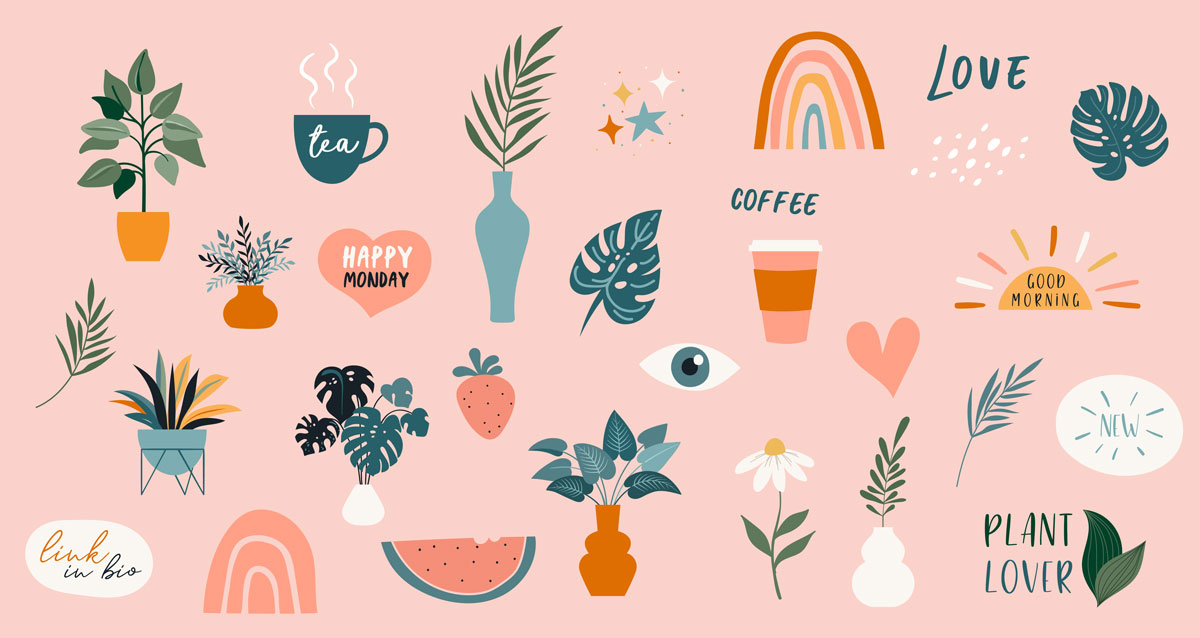
Credit: makeitcenter.adobe.com
Frequently Asked Questions For How To Design A Laptop Sticker
How Do I Make My Own Laptop Stickers?
To make your own laptop stickers, design graphics using software like Adobe Illustrator or Canva. Print your artwork on adhesive vinyl paper using a high-quality inkjet printer. Finally, cut out the stickers carefully, peel off the backing, and apply them to your laptop.
How Do I Layout My Laptop Stickers?
Start by cleaning your laptop surface. Choose a design layout, placing larger stickers first. Fill gaps with smaller pieces. Overlap carefully to avoid bulk. Ensure sticker edges lay flat to prevent peeling. Enjoy your personalized laptop aesthetic!
How Do You Make Your Own Design Stickers?
To create your own stickers, select a design or create one using graphic software. Print it on adhesive paper, ensuring image resolution is high for clarity. Cut out the stickers with precision, and apply a laminate layer for durability if desired.
What Program Do I Use To Design Stickers?
Use Adobe Illustrator or Photoshop for professional sticker designs. For simpler creations, Canva offers user-friendly tools.
Conclusion
Creating your own laptop sticker is an expression of identity and creativity. Armed with the right tools and a spark of imagination, anyone can design a sticker. Remember, simplicity often leads to the most memorable designs. So, unleash your artistic side and make your laptop truly yours.
Let your sticker be a conversation starter!