
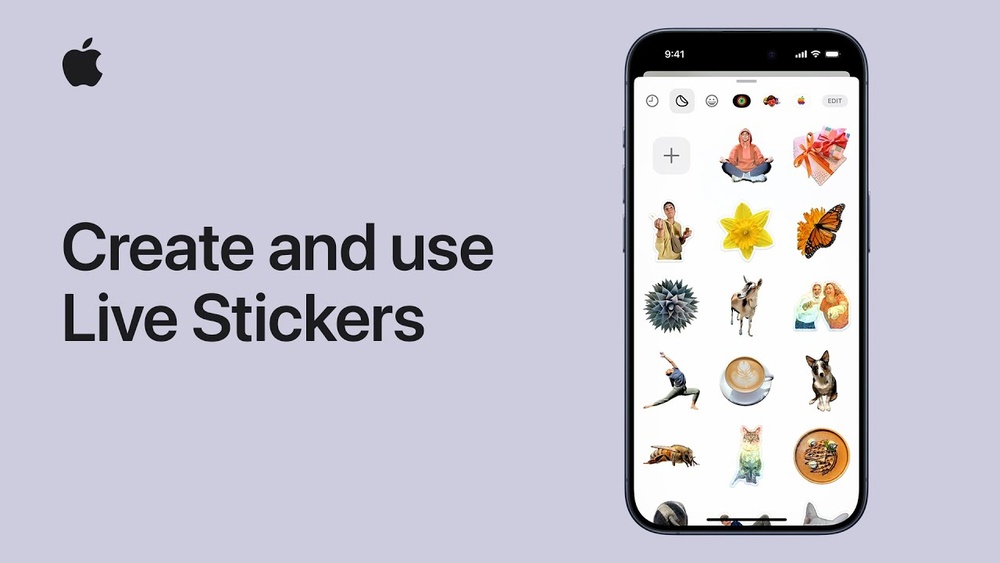
Creating your own stickers has become a popular trend. People use them in messaging apps, social media, and even for printing. Stickers add personality to conversations, make chats more fun, and help brands stand out. But you do not need expensive design software or a computer. Today, you can make personalized stickers easily with mobile apps. Whether you want to create stickers for WhatsApp, Telegram, Instagram, or for printing, you will find plenty of tools right on your smartphone.
This guide will show you how to create personalized stickers step by step, recommend the best apps, explain useful features, and share practical tips. You will learn how to turn your photos, drawings, or text into stickers, customize them, and use them across different platforms.
Even if you are new to design, you will find this process simple and enjoyable.
Why Create Personalized Stickers?
Personalized stickers have many uses. They help you express yourself in a unique way, make conversations more lively, and can even be used for business promotion. Here are some reasons why people create stickers:
- Express emotions: Sometimes, words are not enough. A sticker can show laughter, surprise, or excitement.
- Branding: Businesses use custom stickers for marketing, packaging, and giveaways.
- Creative fun: Making stickers is a creative activity. You can design funny, cute, or artistic stickers.
- Gift ideas: Personalized sticker sets are thoughtful gifts for friends and family.
- Social media engagement: Custom stickers help your posts and stories stand out.
A 2023 survey showed that over 60% of smartphone users use stickers in messaging apps every week. With mobile apps, you can join this trend without any design experience.
Choosing The Right Mobile App For Sticker Creation
There are many apps for sticker creation. Each app offers different features, formats, and export options. It is important to pick an app that fits your needs.
Popular Sticker Maker Apps
Below is a comparison of three leading sticker maker apps. The table highlights their main features:
| App Name | Platform | Key Features | Export Options |
|---|---|---|---|
| Sticker Maker | iOS & Android | Photo stickers, cutout tool, text, emojis | WhatsApp, Telegram |
| PicsArt | iOS & Android | Drawing, photo editing, layering | PNG, social media, print |
| Canva | iOS & Android | Templates, graphics, text, collaboration | PNG, PDF, social media |
What To Look For In A Sticker App
Not all sticker apps are equal. Consider these factors:
- Ease of use: The app should be simple, even for beginners.
- Customization tools: Look for cutout, background remover, and drawing tools.
- Export formats: Make sure you can save stickers in PNG or WEBP with transparent backgrounds.
- Integration: Apps that connect directly to messaging platforms save time.
- Free vs paid: Some apps have free versions, but advanced features may require payment.
Many users overlook export format. If you plan to print stickers, choose an app that allows high-resolution PNG export.
Step-by-step Guide: Making Stickers On Mobile
Creating stickers with a mobile app is straightforward. Here is how you can do it, no matter which app you choose.
1. Select Your App And Open It
Pick a sticker maker app from the app store. Install and open it. Most apps will ask you to create a new project or sticker pack.
2. Choose Your Sticker Source
You can use a photo, drawing, or text as your sticker base. The most common options are:
- Photos: Select from your gallery or take a new picture.
- Drawings: Use the app’s drawing tools.
- Text: Type in words, catchphrases, or names.
3. Remove Background
Most stickers look best with a transparent background. Use the app’s cutout tool or background remover. Apps like PicsArt and Canva offer one-tap background removal.
Tip: For clean edges, zoom in while cutting out the subject. Many beginners forget this and end up with rough borders.
4. Add Elements
Enhance your sticker with:
- Emojis
- Shapes
- Text
- Effects (like shadows or outlines)
Layering is possible in apps like PicsArt and Canva. You can add multiple elements, move them, and adjust their size.
5. Resize And Adjust
Stickers should not be too big or too small. Most messaging apps recommend a size between 512×512 pixels and 1024×1024 pixels. Use the resize tool in your app.
6. Save And Export
Export your sticker in PNG or WEBP format with transparent background. Choose the highest resolution available for printing.
7. Add To Your Messaging App
Some sticker apps allow direct export to WhatsApp, Telegram, or iMessage. If not, save the sticker to your gallery and import it manually.
Example: Making A Whatsapp Sticker
Let’s say you want to create a sticker for WhatsApp using Sticker Maker:
- Open Sticker Maker and create a new pack.
- Choose a photo from your gallery.
- Use the cutout tool to remove the background.
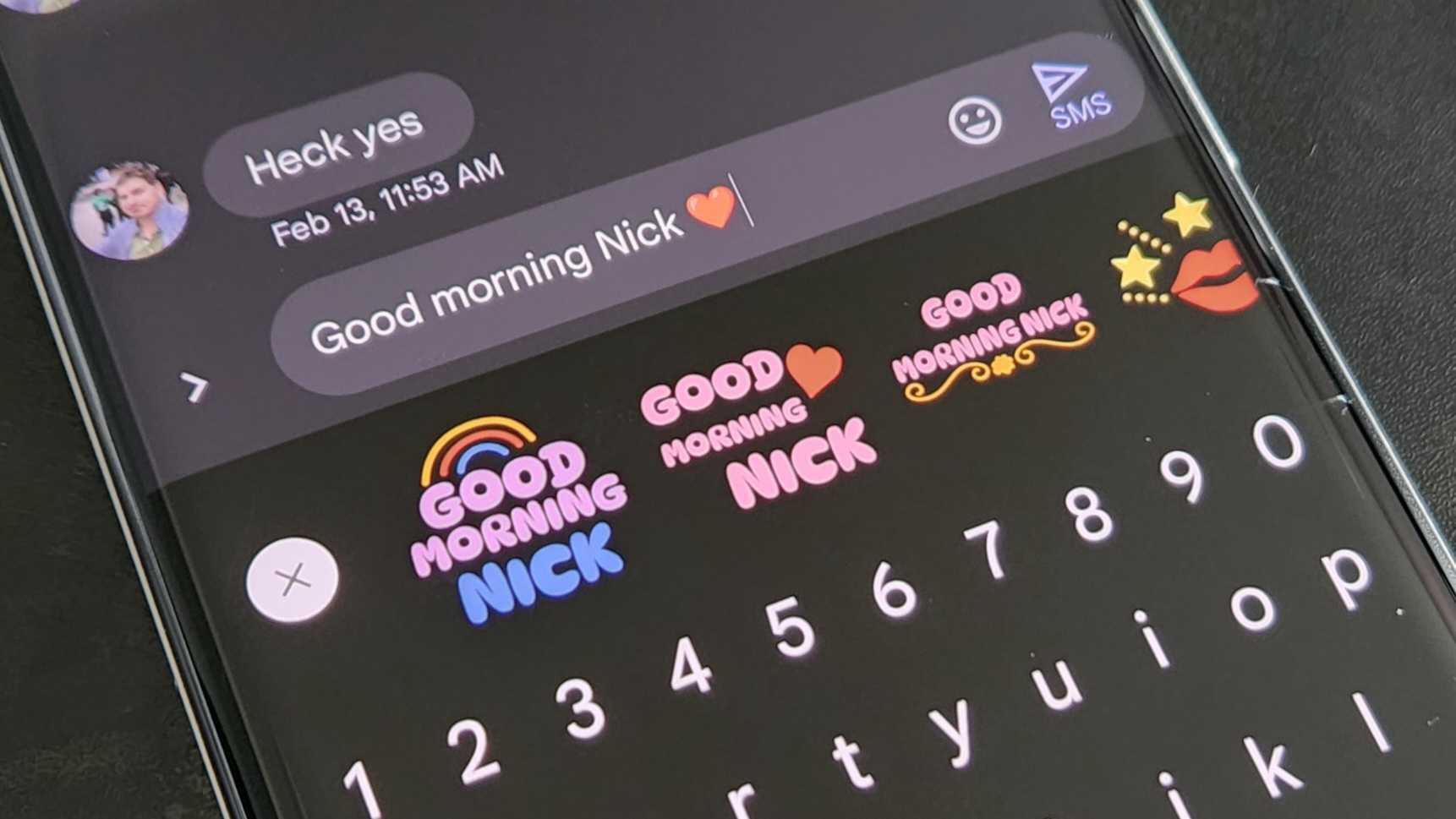
- Add text (“Good Morning!”) and an emoji.
- Resize to 512×512 pixels.
- Export and add the sticker pack to WhatsApp.
Advanced Sticker Customization
Basic stickers are fun, but you can go further with customization. Here are advanced options:
Adding Animation
Animated stickers are popular in Telegram and Instagram. Some apps allow you to add simple animation, like blinking or moving parts.
- GIF stickers: Export as GIF for simple animation.
- APNG stickers: For apps that support animated PNG.
Using Layers
Layering lets you combine multiple images or effects. It is useful for creating complex stickers.
- Place the main subject on one layer.
- Add decorations (hearts, stars) on another.
- Adjust transparency and order.
Creating Sticker Packs
Instead of making single stickers, create packs. Most apps let you organize stickers into groups, making it easier to share or use them.
Common mistake: Forgetting to name your sticker packs. Clear names make them easy to find.
Tips For High-quality Stickers
Quality matters, especially if you plan to share or print your stickers. Here are some tips:
- Use high-resolution images: Avoid pixelated photos.
- Keep designs simple: Overcrowded stickers are hard to see on small screens.
- Test visibility: Check how your sticker looks in both light and dark backgrounds.
- Maintain consistency: Use similar colors and styles in a pack.
- Avoid copyright issues: Use your own images or free resources.
Many beginners miss the importance of color contrast. Stickers with strong contrast stand out better in chats.
Printing Your Personalized Stickers
You may want to print your stickers for use on laptops, notebooks, or gifts. Here is what you need to know.
Preparing Stickers For Print
- Export stickers in PNG or PDF.
- Choose at least 300 DPI for print quality.
- Arrange multiple stickers on one sheet to save paper.
Choosing Sticker Paper
There are different types of sticker paper. Here is a comparison:
| Type | Finish | Best for | Durability |
|---|---|---|---|
| Matte | Non-shiny | Writing, labeling | Medium |
| Glossy | Shiny | Decorative, colorful designs | High |
| Transparent | Clear | Glass, windows | Medium |
Printing Tips
- Use an inkjet or laser printer.
- Set to “photo” or “high quality” mode.
- Let stickers dry before cutting.
Cutting Stickers
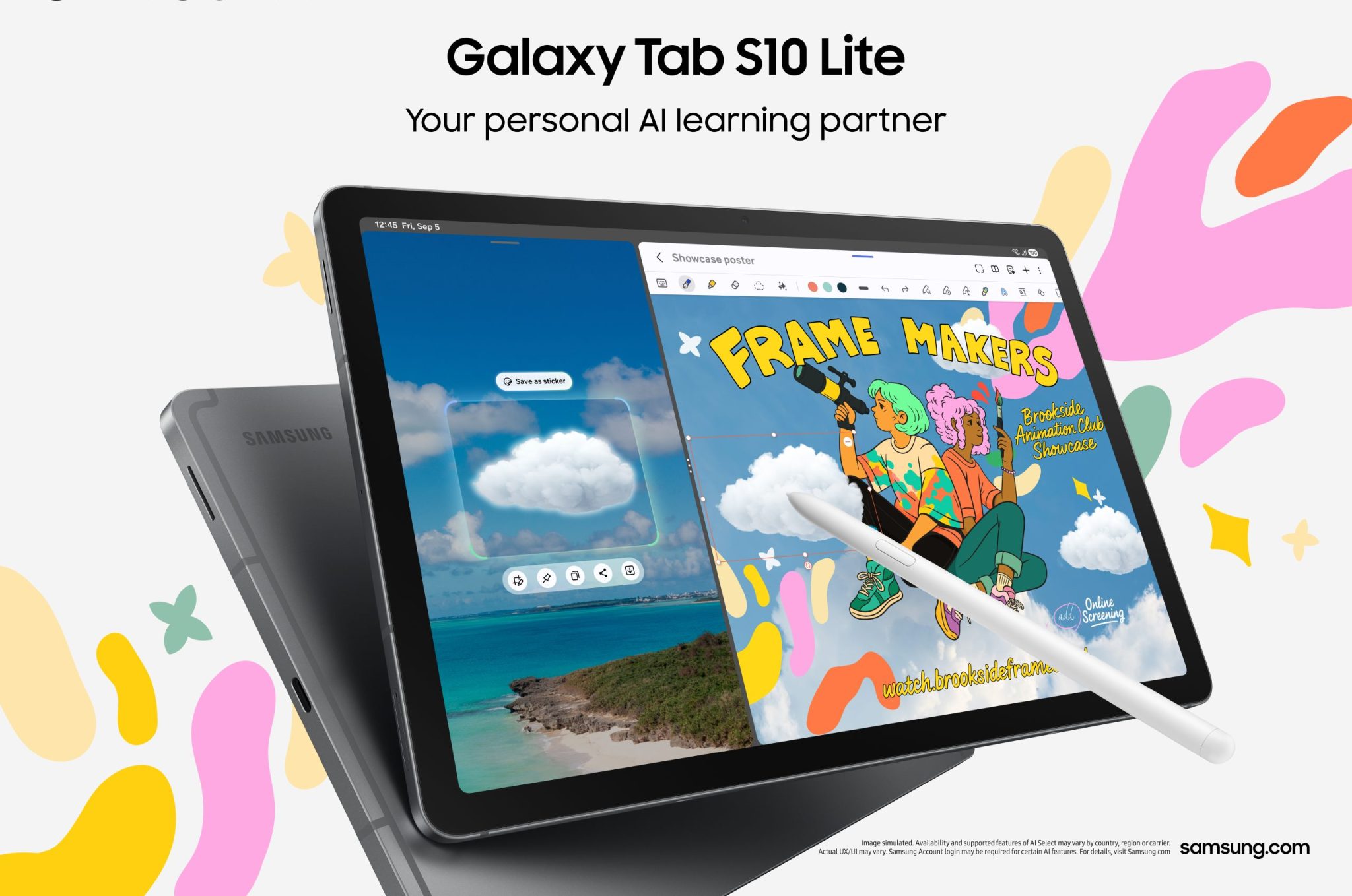
Cutting by hand is possible, but for perfect shapes, use a cutter machine like Cricut. Many apps let you export files compatible with these machines.
Credit: news.samsung.com
Using Stickers Across Platforms
Your sticker can be used in many places:
- Messaging apps: WhatsApp, Telegram, iMessage, Signal.
- Social media: Instagram Stories, Facebook Messenger, Snapchat.
- Printing: Labels, gifts, decorations.
Some platforms require stickers in specific formats. For example, Telegram uses WEBP, WhatsApp uses PNG, and Instagram accepts GIF for animated stickers.
Example: Exporting For Telegram
- Save your sticker as WEBP.
- Open Telegram Sticker Bot.
- Upload your sticker and follow instructions.
Legal And Copyright Considerations
When creating stickers, it is important to respect copyright rules. Many people use images found online, but this can lead to problems.
- Create original designs: Use your own photos, drawings, or free resources.
- Check licenses: If you use graphics from the web, make sure they are free for personal or commercial use.
- Avoid trademarks: Do not use company logos or characters without permission.
For more details on copyright and fair use, visit Wikipedia.
Common Mistakes Beginners Make
Many first-time sticker creators face these challenges:
- Ignoring resolution: Low-res stickers look blurry.
- Poor cutouts: Not zooming in leads to jagged edges.
- Too much detail: Small stickers cannot show complex designs.
- Wrong format: Using JPG instead of PNG removes transparency.
- Copyright issues: Using images without permission.
Avoiding these mistakes will make your stickers look professional and ready for sharing.
Comparing Free Vs Paid Apps
Sticker maker apps come in free and paid versions. Here is a comparison of what you get:
| Feature | Free Apps | Paid Apps |
|---|---|---|
| Basic editing | Yes | Yes |
| Background removal | Limited | Advanced |
| Export formats | Standard | High-res, more types |
| Animation | No or limited | Yes |
| No ads | No | Yes |
If you are serious about sticker creation, paid apps offer more features and better quality. But for casual users, free apps are often enough.
Inspiring Ideas For Sticker Design
Looking for ideas? Here are some popular sticker themes:
- Memes: Turn funny moments into stickers.
- Quotes: Motivational or humorous text stickers.
- Pets: Use photos of your cat or dog.
- Seasonal: Create holiday, birthday, or festival stickers.
- Personal branding: Logo stickers for your business.
Try combining two ideas, like a pet with a funny quote. This makes your sticker unique and memorable.
How To Share Your Stickers
Once your stickers are ready, you can share them:
- Upload to sticker platforms or communities.
- Send packs to friends or family.
- Use on your own social media accounts.
Some apps let you publish sticker packs for others to use. This is a great way to show your creativity.
Credit: www.youtube.com
Troubleshooting: What To Do If Stickers Don’t Work
Sometimes, stickers fail to load or appear in apps. Here are solutions:
- Check the format (PNG, WEBP, GIF).
- Make sure size meets app requirements.
- Restart your messaging app.
- Update the sticker app.
- Re-import the sticker pack.
If you follow the steps and tips in this guide, most problems can be solved quickly.
Frequently Asked Questions
What Is The Best App For Making Stickers?
There is no single best app. Sticker Maker is easy for beginners, PicsArt is good for drawing, and Canva is great for templates. Choose based on your needs and preferred features.
How Can I Make Stickers With Transparent Backgrounds?
Most sticker apps have a background remover or cutout tool. Use it to erase the background, then export your sticker in PNG format. This keeps the background transparent.
Can I Use My Stickers In Multiple Messaging Apps?
Yes, but you may need to export in different formats. WhatsApp prefers PNG, Telegram uses WEBP, and Instagram supports GIF for animated stickers. Many apps provide export options for each platform.
Is It Possible To Print My Stickers?
Definitely. Export your stickers in high-resolution PNG or PDF, use sticker paper, and print with a good-quality printer. For perfect cuts, use a cutting machine or scissors.
Are There Copyright Issues With Using Images From The Internet?
Yes. If you use someone else’s image, you may break copyright laws. Always use your own photos, drawings, or resources with free-to-use licenses. Read more about fair use on Wikipedia.
Creating personalized stickers using mobile apps is easy, creative, and fun. Whether you want to spice up your chats, promote your brand, or print custom stickers, you can do it all from your phone. Try different apps, explore features, and follow the tips for best results. Avoid common mistakes and check copyright before sharing. With a little practice, your stickers will be unique, high-quality, and ready for any platform or purpose.
Credit: www.androidcentral.com